
Product Video
Shopify Product Video Requirements in 2026
Learn Shopify product video requirements and how to make a short, clear clip that helps shoppers judge a product.
Use this product video checklist to plan clear listing clips that answer buyer questions, show real product details, and work on mobile.

A product video checklist keeps a listing video focused on the questions that stop a shopper from buying. Before filming, decide what the buyer needs to see, make that answer visible in the first seconds, and test the finished clip on a phone.
That sounds simple, but it prevents a common mistake: treating video as decoration. A product page video should remove doubt about fit, scale, use, texture, or motion. It should not make the shopper wait through a brand intro.
Write down the question that causes a buyer to pause. For a shirt, it may be, “How does the fabric move?” For a suitcase, it may be, “How much fits inside?” For a handheld milk frother, it may be, “Does it make foam quickly, and how large is it?” One video can answer more than one question, but it needs a primary job.
This step gives the clip a useful opening. Instead of a logo or a slow pan across packaging, open with the product doing the thing the shopper came to check. The rest of the product video checklist becomes easier because the product, shot list, and page placement all follow that one question.
Buyers should see the full item before close-ups. Use a clean, well-lit frame that shows its shape, color, and the parts included. Avoid an angle that hides the handle, back, closure, or control the buyer needs to inspect.
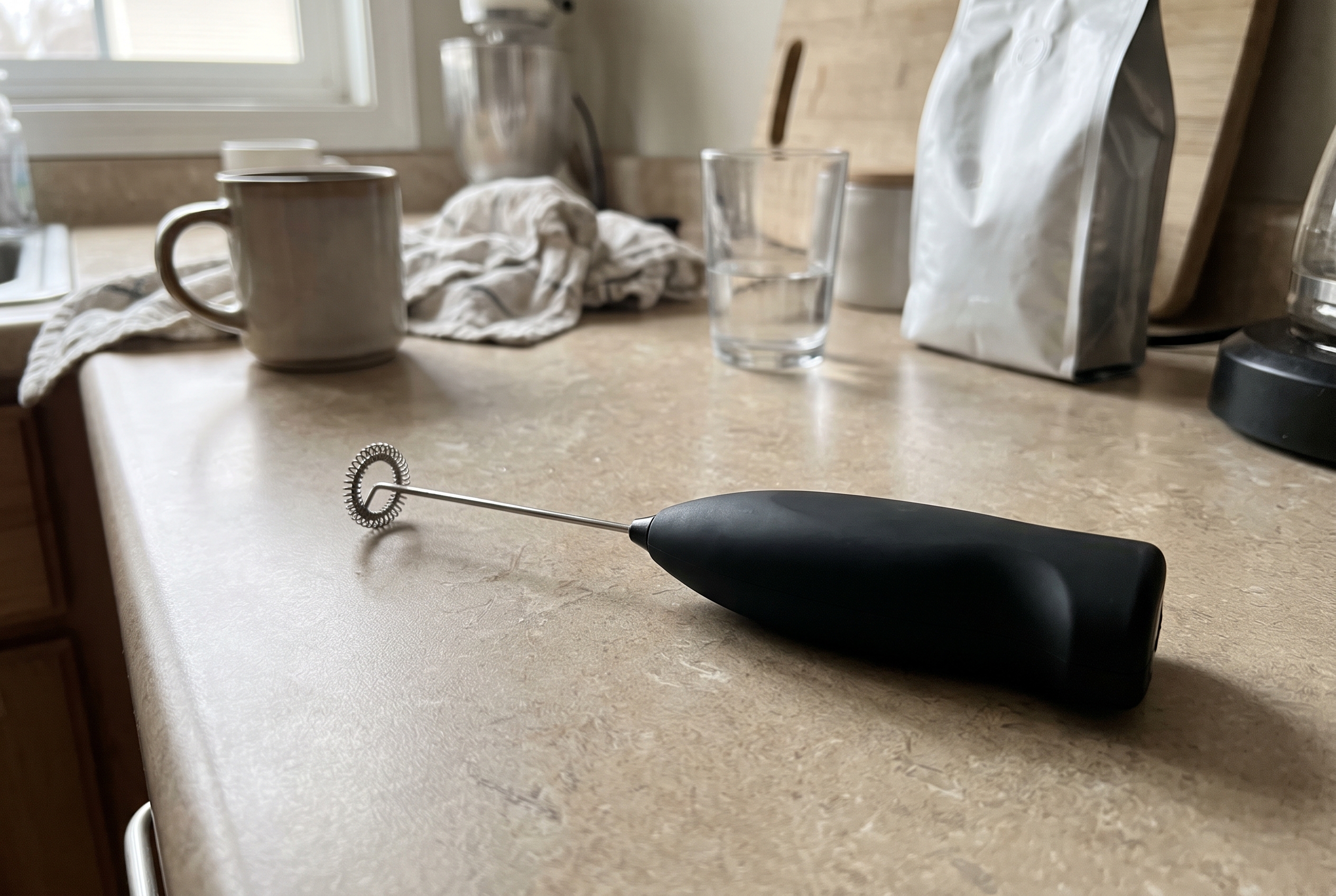
The sample above is a useful starting point, not a finished listing asset. The frother is present, but the background competes with it. A better first frame makes the item easy to recognize at a glance. This also gives an editor a reliable thumbnail candidate if the store platform displays one.
Product photos can make a small object look large or a large object look compact. Add one shot that settles the question without a long explanation. A hand holding the item works well. So does placing it beside a familiar object, using a person for apparel, or showing it in its normal storage spot.
Use real scale. Do not stretch a small product with a wide-angle shot, and do not hide a bulky item behind a tight crop. A clear scale shot can reduce the gap between what a shopper expects and what arrives. For a broader page review, use the product listing audit checklist alongside this product video checklist.
A motion shot matters most when the item changes, moves, opens, fits, pours, or solves a practical problem. Show the action from an angle that explains it. A single clean use case often works better than a fast montage of unrelated scenes.

For the milk frother, the proof is the whisk spinning in milk and foam forming. For a travel mug, it could be the lid opening and closing without leaking. For a jacket, it could be a person raising an arm or showing the inside pocket. Keep the action truthful. If an accessory is needed to make the product work, show it.
The sample clip uses a before-and-after structure: first identify the object, then show the result. That pattern works for many catalog items because it answers both “What is this?” and “What happens when I use it?” without asking the shopper to infer either point.
List the details that influence a buying decision, then give each one a deliberate shot. This can include a zipper pull, fabric weave, charging port, ingredient texture, clasp, sole, included adapter, or measurement mark. Use close-ups for detail, but return to a wider shot so the viewer knows where that detail belongs.
Do not promise a platform rule unless you have checked it. For example, Shopify includes video among the product media types it supports, but the best format and placement still depend on the store theme and the item being sold. A useful product video checklist protects the product details first, then adapts the file to the platform.
Use lighting that makes the real color easy to judge. Avoid filters that turn navy into black, cream into white, or matte material into glossy material. If the video shows a result, set the scene so the result is believable. A cleaning product should show the surface before and after. A storage box should show what fits inside.
Honest presentation also supports the rest of the product page. The title, description, images, structured data, and video should describe the same product. Google explains that product information can appear in richer shopping experiences when merchants provide product data on their pages and in feeds. Review the Google product structured data guidance when checking that broader setup.
Many shoppers will watch with sound off. Make the action readable without narration. Use a stable opening frame, keep the subject large enough on a phone screen, and avoid text that becomes tiny after the player shrinks. If spoken instructions are needed, add accurate captions and make sure they do not cover the product.
Test the product video checklist on a real phone before publishing. Look at the first frame, the product size, the tap target, and the final frame. If the video needs audio to make sense, add a visual cue or rewrite the sequence. The clip should still answer the buying question when silent.
Put the main product video near the images and purchase information, not at the bottom of a long page. A buyer comparing color, size, and materials should find the clip before scrolling through every detail. Keep the player from pushing the price, options, or add-to-cart button far down the page.
Before publishing, check that the video loads, the poster frame looks sensible, controls work, and the file does not make the page feel slow. Then check the product page as a shopper would: on mobile, on desktop, and with sound off. Pair that review with the product image alt text checklist so the supporting images explain the product just as clearly.
Start with the products that create the most questions or bring the most revenue. Give each product a simple brief: buyer question, first frame, scale shot, proof shot, detail shot, and final quality check. That turns a product video checklist into a repeatable production process instead of a one-off filming day.
For larger catalogs, Agerta can help teams spot incomplete product content and prepare approved assets across the store. The goal stays the same: give shoppers the proof they need before they buy.
Explore more practical examples in the Product Video category.
Your agentic office
Your Store Manager finds products missing photos, descriptions or details, writes titles and descriptions in every language you sell in, and prepares product photos and videos for your Shopify or WooCommerce store. Store changes wait for your approval until you let routine updates through.
Product Video
Learn Shopify product video requirements and how to make a short, clear clip that helps shoppers judge a product.
Store Automation
Learn which product data audit checks to automate, which need human review, and how to fix listing gaps across an online store.
Product Photography
Set WooCommerce product image sizes and crops that keep products clear in catalogs, galleries, and product pages.