Product Photography
How to Take White-Background Product Photos
Learn a repeatable setup for clean white-background product photos, from lighting and phone shooting to practical catalog checks.
Set WooCommerce product image sizes and crops that keep products clear in catalogs, galleries, and product pages.

WooCommerce product image requirements start with a simple rule: upload a strong source file, then test how the theme crops it. A photo can look good in the media library and still lose its product edge, handle, or detail in a catalog grid. This guide shows how to prepare one reliable image set and check the places shoppers actually see it.
WooCommerce uses a main product image, catalog images, and smaller gallery thumbnails. The main image appears on the product page. Catalog images appear in shop, category, related-product, upsell, and cross-sell grids. Thumbnails help shoppers move through the gallery and can also appear in smaller interface areas.
The important point is that one upload can be rendered several ways. The official WooCommerce guide to product images and galleries recommends source images of at least 800 by 800 pixels. It also notes that a larger source helps when a product has fine detail. That recommendation is a floor, not a reason to upload a soft or badly framed picture.
Theme settings change the final display. In classic themes, the developer documentation says the single-product image uses the uploaded image without cropping by default, while catalog and gallery thumbnails can use square crops. That is why a picture that feels safe on a product page can still look cramped in the shop grid.
For practical WooCommerce product image requirements, treat the original file as the master. Shoot or generate it with the entire product visible, a little room around the edge, and enough detail for a shopper to zoom. Do not solve a tight crop by stretching the image. It will only make the catalog tile look blurry.
A square source is often the easiest starting point when a store uses square catalog cards. It is not mandatory. A wider photo can work well if the subject stays inside a central safe area. The key is to protect the product, not the background. Leave breathing room around handles, straps, lids, and small parts that a crop could cut off.

This sample is intentionally weak. The ceramic dripper sits near the front of a cluttered counter. A shopper has to work to identify the item, and a tight square crop would make that problem worse. The image has enough pixels, but it does not give the storefront a clean focal point.
Open Appearance, then Customize, then WooCommerce, then Product Images to check the catalog crop. WooCommerce offers square, custom-ratio, and uncropped choices for catalog and thumbnail images. The official product-image settings guide recommends previewing changes on desktop, tablet, and mobile before publishing them.
| Storefront choice | Best use | What to check |
|---|---|---|
| Square crop | Catalogs that need an even grid | Handles and edges stay inside the frame |
| Custom ratio | A theme with a deliberate card shape | Every product still has enough margin |
| Uncropped | Products where shape matters more than grid uniformity | Cards do not look uneven beside each other |
Do not assume the setting controls every image. A theme can define widths or alter presentation with CSS. The WooCommerce image-sizing documentation explains that themes can set image sizes and that store owners can control cropping when those settings are available. Check the actual storefront after any change.
The sample coffee dripper needed two versions. The first was a catalog-ready image. The product is centered, fully visible, and surrounded by plain space. It gives a square crop nothing important to remove. This is the kind of source that handles catalog grids, smaller tiles, and gallery navigation without making a shopper guess what is for sale.
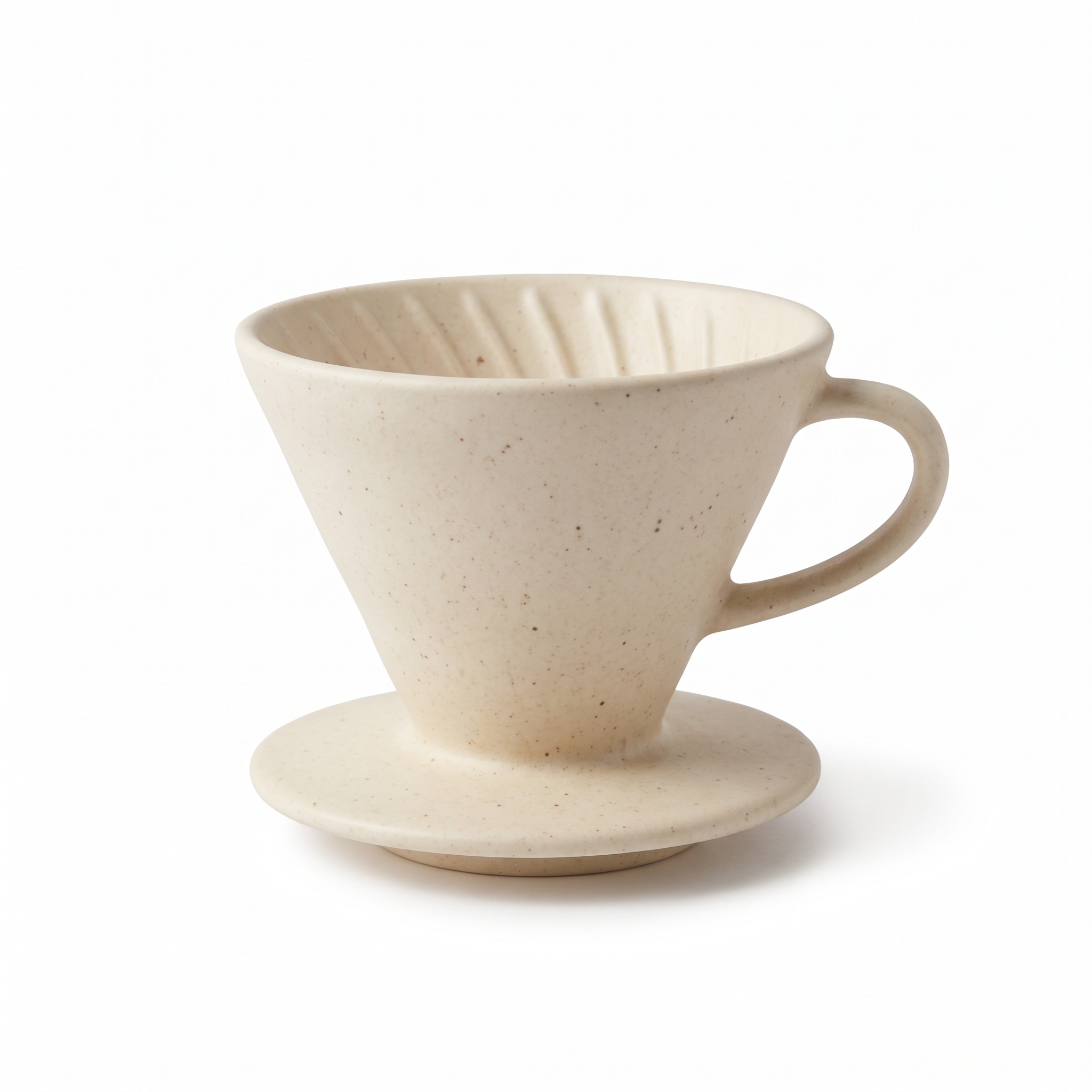
The second version was made for the product page. It adds context but keeps the dripper in the middle of the frame. This is where a lifestyle shot earns its place: it shows scale and use without replacing the clear main product view. Use it in the gallery, not as a substitute for a readable catalog image.

These examples also show why WooCommerce product image requirements are not just a pixel question. The same product can need a clean catalog view and a contextual gallery view. The file dimensions matter, but framing decides whether the resulting crop helps a buyer.
Before publishing, open the product page, the shop page, one category page, and a phone preview. Look for cut-off product edges, inconsistent card heights, and images that turn soft when enlarged. If a catalog image looks wrong, inspect the source framing first. Then confirm the crop setting and whether the theme overrides it.
Existing catalogs need this check too. A product listing audit can surface photos that are missing, soft, or framed too tightly. If a store needs a cleaner visual baseline, start with white-background product photos, then add contextual gallery images where they help a shopper understand the item.
For a large catalog, repeatable rules save more time than fixing images one by one. Agerta can find product listings with weak or missing images, prepare new product visuals, and keep the update inside the approval rules a store sets. For more photography guidance, browse the Product Photography category.
Your agentic office
Your Store Manager finds products missing photos, descriptions or details, writes titles and descriptions in every language you sell in, and prepares product photos and videos for your Shopify or WooCommerce store. Store changes wait for your approval until you let routine updates through.
Product Photography
Learn a repeatable setup for clean white-background product photos, from lighting and phone shooting to practical catalog checks.
Product Video
Use this product video checklist to plan clear listing clips that answer buyer questions, show real product details, and work on mobile.
Store Automation
Learn which product data audit checks to automate, which need human review, and how to fix listing gaps across an online store.